Topics
- Getting started
- Unlock keys and licensing
- The House: every room
- Find and your music
- Spotify and TIDAL
- The party
- Party settings and house rules
- Guests: joining and adding songs
- Roomies, Make one and personality
- Host, Family and guests
- The TV screen
- Karaoke and singing along
- Games
- Nanny, your DJ, and the Hula Shaker
- Talk to it: typing and voice
- Tonight’s recap
- Me, looks and Help
- Privacy and where things are kept
- Troubleshooting
- Frequently asked questions
Getting started
Hootin’ Nanny runs on one computer at home that stays on during the party. Phones and the TV connect to it over your Wi-Fi. Everything it needs comes with it, so there’s nothing else to download.
Install on Windows 10 or 11
- Download HootinNanny-0.19.0-Windows.zip from the download page and open it. Double-click HootinNanny-Setup-0.19.0.exe.
- If Windows says “Windows protected your PC”, click More info, then Run anyway. Hootin’ Nanny isn’t from a big company, so Windows doesn’t know it yet.
- Choose Yes when Windows asks to make changes. That lets phones on your home Wi-Fi reach Hootin’ Nanny.
- Nanny says hi. Click Next, keep the suggested folder and click Install.
- Leave Start Hootin’ Nanny now ticked. Tick Start Hootin’ Nanny when I sign in to keep it always ready.
- Nanny’s icon appears by the clock and the setup page opens in your browser.
In the Start menu you’ll find: Hootin’ Nanny, Hootin’ Nanny (try with pretend speakers), the guides, Phones can’t connect – fix it, and Uninstall.
Install on a Mac (macOS 11 or later)
- Download HootinNanny-0.19.0-Mac.zip and open it. Drag Hootin’ Nanny into your Applications folder.
- Open Hootin’ Nanny. The first time, macOS says it can’t check it. Click Done.
- Open System Settings → Privacy & Security, scroll down to “Hootin’ Nanny was blocked” and click Open Anyway, then Open.
- Allow it to find devices on your local network. Nanny’s icon appears in the menu bar and the setup page opens.
After that, open Hootin’ Nanny from Applications or the Dock like any app.

Want to look around first? Start Hootin’ Nanny (try with pretend speakers) from the Start menu. Every screen works, with demo rooms and songs.
The setup page
The setup page lives on the Hootin’ Nanny computer at 127.0.0.1:8800/setup. It walks you through three quick things:
1 · Your phone
Scan the code with your phone’s camera: that phone is now the host remote. Each code works for one phone, then hides itself; tap Connect another phone for the next. No camera? Open the address shown, choose This is my Hootin’ Nanny and type the 4-digit PIN.
2 · Your music
Choose a folder… where your music lives. MP3, M4A/AAC, WMA, FLAC, OGG, WAV and AIFF all work.
3 · Spotify, TIDAL
Optional, about 3 minutes each. Search everything, and Nanny finds new songs. See Spotify and TIDAL.
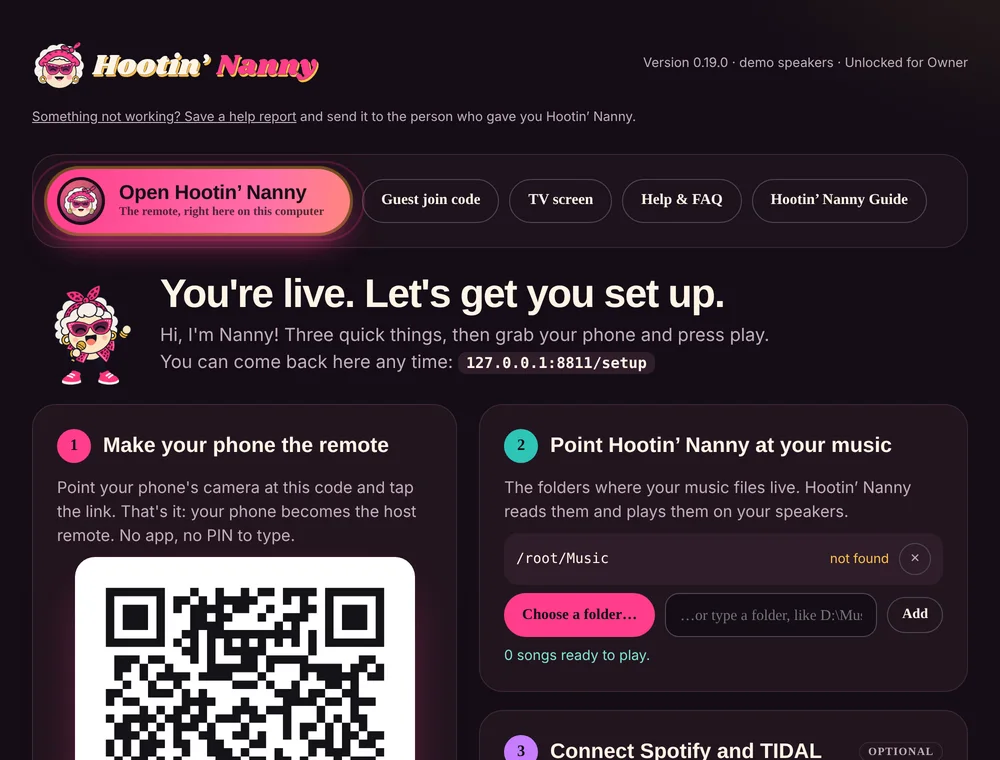
At the top of the setup page, the big pink Open Hootin’ Nanny button opens the remote right on this computer. Next to it: the Guest join code (put it on a screen for guests to scan), the TV screen, this Help & FAQ and the Hootin’ Nanny Guide.
“Show this page when Hootin’ Nanny starts”
This checkbox on the setup page decides whether the setup page opens in your browser each time Hootin’ Nanny starts. It’s ticked on a new install so you see it the first time.
- Ticked: the setup page opens when Hootin’ Nanny starts, and when you open Hootin’ Nanny again from its shortcut.
- Unticked: nothing pops up. If it’s already running, Nanny’s icon by the clock hops to say so. Click the icon whenever you want the setup page.
- Updating keeps your choice.
Start when you sign in
Tick Start Hootin’ Nanny when I sign in to this computer on the setup page (or in the icon’s menu) and Hootin’ Nanny starts quietly in the background every time you sign in, ready for the party.
Nanny’s icon by the clock
Hootin’ Nanny lives next to the clock on Windows (in the menu bar on a Mac). Click Nanny for the setup page. Its menu has:
- Volume: every room, louder or quieter, levels and mute.
- Sleep timer: stop at the end of the song, or in 15, 30 or 60 minutes, fading out.
- Nanny hops when a guest joins, a song is added, or there’s a new karaoke champ.
- When your key is ending, a reminder shows at the top of this menu.
- Save a help report is here too, for when something isn’t working (see Still stuck?).
Updating
Run the new installer the same way. It stops the running Hootin’ Nanny for you. Settings, phones, playlists, history and your key are kept. TV screens and phones that are open reload by themselves with the new version.
Back to top ↑Unlock keys and licensing
Each copy of Hootin’ Nanny is unlocked for the computer it runs on, with a key made for that computer’s code. Keys last 90 days, a year, or for good.
If someone shared Hootin’ Nanny with you
- Install it. The setup page shows this computer’s code, like
HN-ABCDE-FGHJK. Tap Copy the code. - Text or email it to the person who gave you Hootin’ Nanny.
- They send back a key starting
RTKEY-. Paste all of it and tap Unlock.
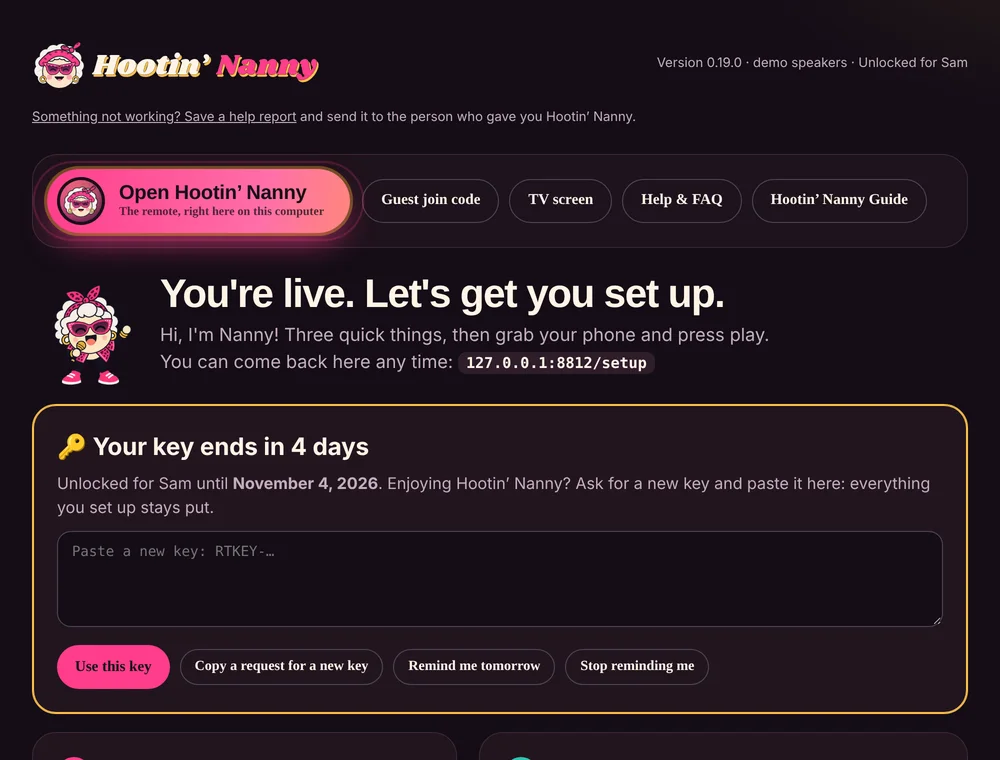
When a key is about to end
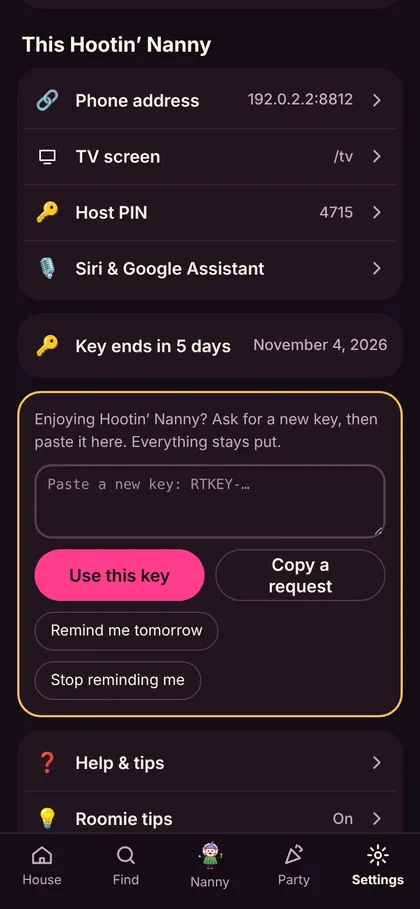
From a week before, Hootin’ Nanny reminds you once a day: a notification from the icon by the clock, a card on the setup page and one in Settings. Each offers Enter new key, Remind me tomorrow and Stop reminding me, plus Copy a request, a ready-made message with your end date and code.
Paste the new key and everything you set up stays put. If it runs out, Hootin’ Nanny shows the unlock screen until a new key is in. Turning the computer’s clock back doesn’t help.
If it’s your copy (you’re the owner)
- On the setup page, open This is your own copy? and choose your owner file (
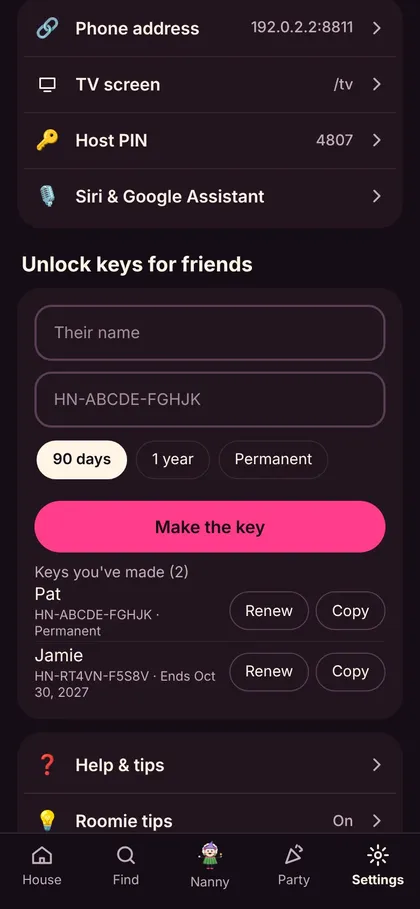
roomtone-owner.txt). Your copy never needs a key. - For a friend: Settings → Unlock keys for friends. Type their name and code, choose how long it lasts (90 days, 1 year or Permanent), tap Make the key, then Copy.
- To renew: open Keys you’ve made, pick a length and tap Renew next to their name. Their code never changes, so you don’t need anything from them.
Moving to another computer
Install Hootin’ Nanny on the new computer. If it’s your own copy, load your owner file and you’re done. To keep everything (playlists, history, settings, the list of keys you’ve made), copy the Hootin’ Nanny folder (see where things are kept) across before you start it. A friend’s copy needs a new key for the new computer’s code.
RT-XXXXX-XXXXX. They’re the same code and still work, and keys made under Roomtone still unlock.The House: every room
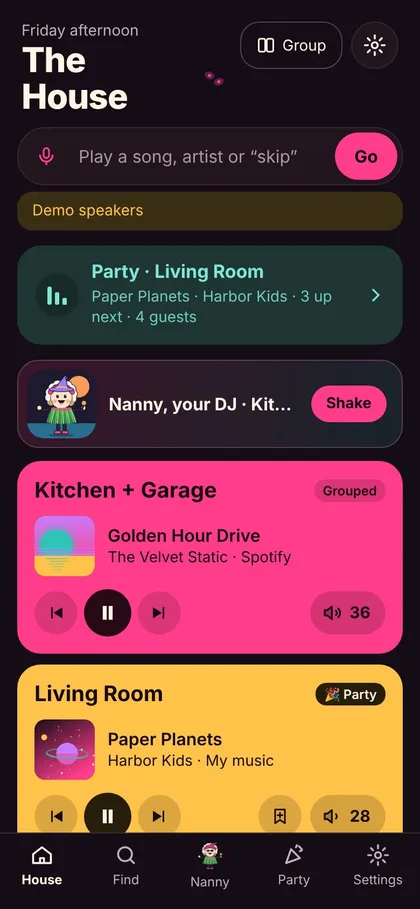
The host and Family see the House: every Sonos room, playing or not, with the party line on top.
Room tiles
Playing rooms glow in their song’s colours; the party room says 🎉 Party. Back, pause and skip are right on the tile, with the speaker button for volume.
A room’s panel
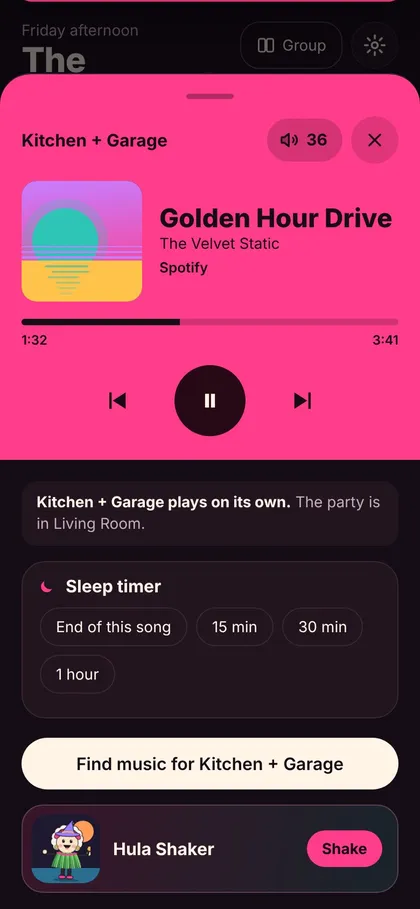
What’s playing, big, with reactions, Favorite and Save; Up next (tap a song to play it now); the sleep timer; Find music for that room; and Nanny’s Hula Shaker.
🔊 Volume
Tap the speaker for the slider and mute. Grouped rooms get one slider for all, and one for each speaker.
🔗 Group rooms
Tap Group, pick the room whose music keeps playing, then tick the rooms to join it. All rooms plays everywhere.
💬 Tell Hootin’ Nanny
The box at the top plays whatever you type: “miles davis in the kitchen”, “skip”. See Talk to it.
Find and your music
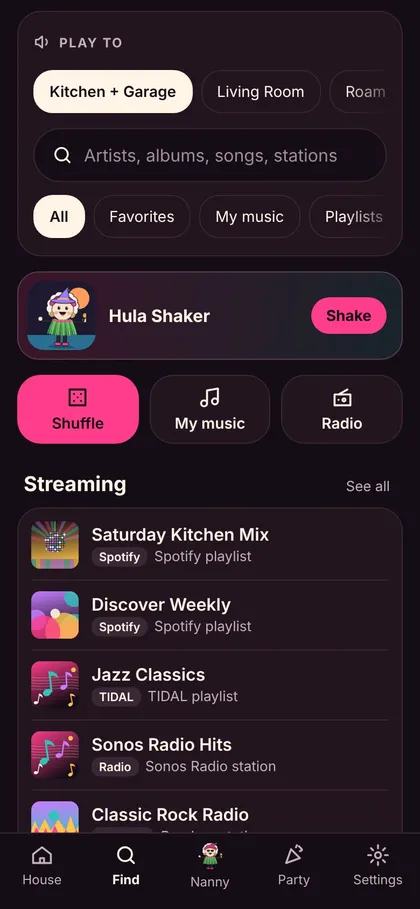
Pick the room at the top (“Play to”), then search or browse: your music, Spotify, TIDAL, radio and your Sonos favourites, all in one go.
▶️ Play now or add
Tap a song to play it now; the + adds it to that room’s line. A message says where it went. Albums: Play album or Add to queue. Select songs picks several.
🎉 Party on in another room?
Hootin’ Nanny asks once: Add to the party or Just play here, and remembers your answer until you close the app.
🔖 Favorites
Everyone keeps their own. Tap the bookmark on anything playing; play them all or shuffle.
📃 Playlists
Paste links (one per line, titles welcome), mix your files with Spotify, TIDAL, Apple Music and Deezer, or Save what’s playing. “Play my road trip playlist” works too.
🕒 Recently played
Every song that played for 20 seconds, for 90 days, with the room and who added it. Save as a playlist per day.
🏆 Crowd favourites
Songs ranked by the ❤️🔥⭐⚡ they got. Play, save, or add to the party.
📻 Radio
Search by name or style (“jazz”, “BBC”). Tap the star to keep it under My stations.
🔗 Streaming links
Save Spotify or TIDAL links, or load a list (.txt or .csv). Pandora, YouTube Music and Amazon: heart them in the Sonos app instead.
Adding music folders
On the setup page (or Settings → Music), choose the folder where your music lives. Use Look for new music after you add songs. Well-tagged music (artist, album, genre and year) gives better search results and better picks from Nanny.
Back to top ↑Spotify and TIDAL
Connect once and every search covers the whole catalogue, not just your files. Guests can find songs too, and Nanny can surprise you. Music still plays through the accounts in your Sonos app.
🟢 Spotify (needs Premium, as Sonos does)
Do this on the Hootin’ Nanny computer: open http://127.0.0.1:8800, then Settings → Search Spotify and TIDAL → Connect. Spotify only lets the sign-in finish there.
- Go to developer.spotify.com/dashboard, log in, and accept the terms.
- Create app. Name: Hootin’ Nanny. Description: anything.
- In Redirect URIs, add exactly
http://127.0.0.1:8800/api/spotify/callback(there’s a Copy button), then Add. - Tick Web API, agree and Save.
- Open the app’s Settings, copy the Client ID into Hootin’ Nanny, tap Connect and sign in. You don’t need the secret.
⚫ TIDAL (any phone or computer)
- Go to developer.tidal.com and log in with your TIDAL account.
- Open the Dashboard and create an app called Hootin’ Nanny.
- Copy its Client ID and Client Secret into Hootin’ Nanny, check your 2-letter country, and tap Connect TIDAL.
Good to know
- Guests see songs (not albums or playlists) when they search.
- Turn off Streaming links under House rules to keep guests to your own music.
- Disconnect any time in the same place.
- Nanny picks from your music, Spotify and TIDAL, in any mix. Streaming picks are songs you haven’t played yet, marked New.
The party
There’s nothing to start: the party lives in one room and plays as soon as someone adds a song. It never takes over music it didn’t start.
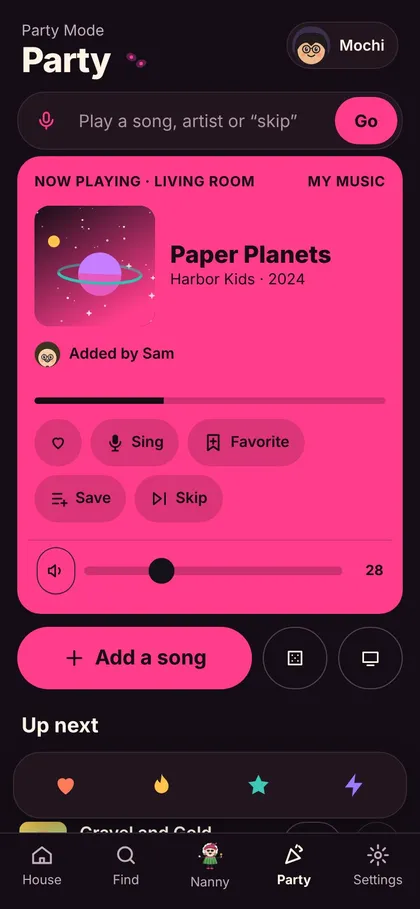
🏠 The party room
Living Room (or your first room) until you pick another. Something else playing there? The party waits; tap Back to the party now to switch.
⚖️ Fair turns
Everyone gets a song before anyone gets a second; guests can have 10 waiting. The host and Family can tap a song to play it now, or use its menu. Removed or skipped one by mistake? Tap Undo.
🎶 Never silent
Nanny fills any gap in the party’s vibe. Guests’ requests always come first.
🔊 Volume
Right on the party card for the host and Family. Guests get a gentle +/− up to the host’s limit, nothing more.
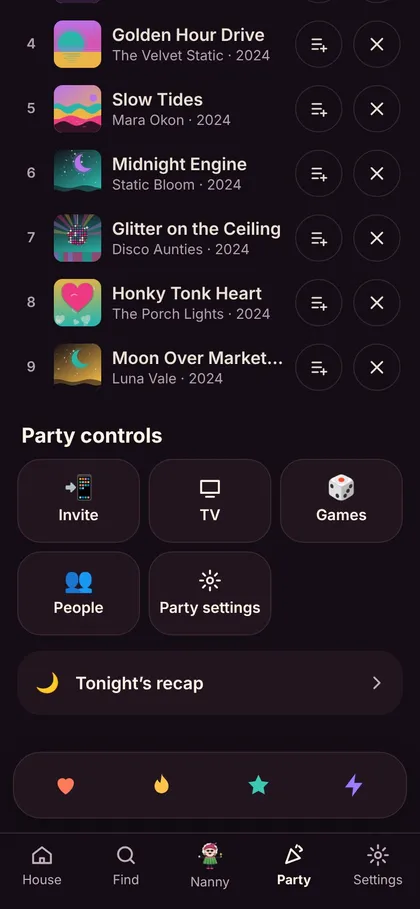
🧰 Party controls
Invite, TV, Games, People, Party settings and the recap.
Party settings and house rules
Under Party controls → Party settings the host sets the house rules.
🔈 Guest volume
Off unless you allow it: only you and Family can change the volume. Turn on Guests can change the volume to give guests − and + buttons, up to your Guest volume limit.
🎶 Never silent
Nanny fills gaps when the line runs out.
🔗 Streaming links
Let guests paste Spotify, TIDAL, Apple Music or Deezer links, or keep them to your own music.
🧼 Clean mode
No explicit songs from guests or Nanny. Spotify and TIDAL mark explicit songs; your own music files usually don’t say, so those still play.
🌅 Fresh start
Clears the line, scores and crowns for a new night. Tick Also sign guests out to start with an empty guest list.
☕ Stays awake
The computer stays awake while the party is on. On a laptop, keep the lid open.
Guests: joining and adding songs
Guests scan the code on the TV (or on Invite), type a name, pick a Roomie, and they’re in.
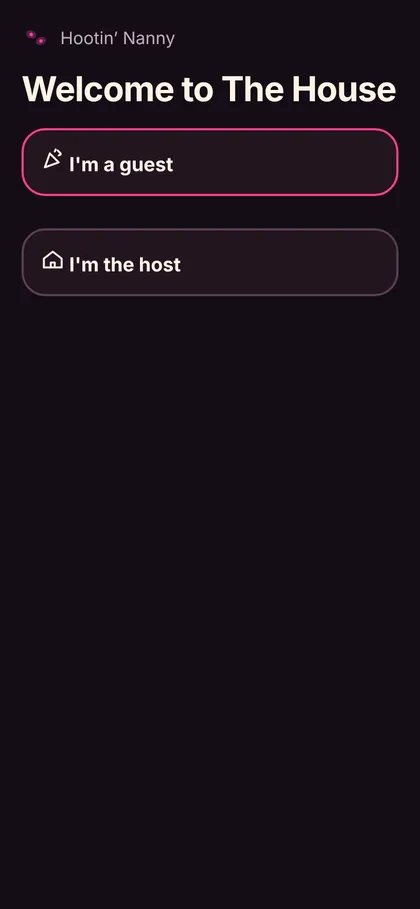
- Scan the join code with the phone’s camera, or open the address on the TV. Tap I’m a guest.
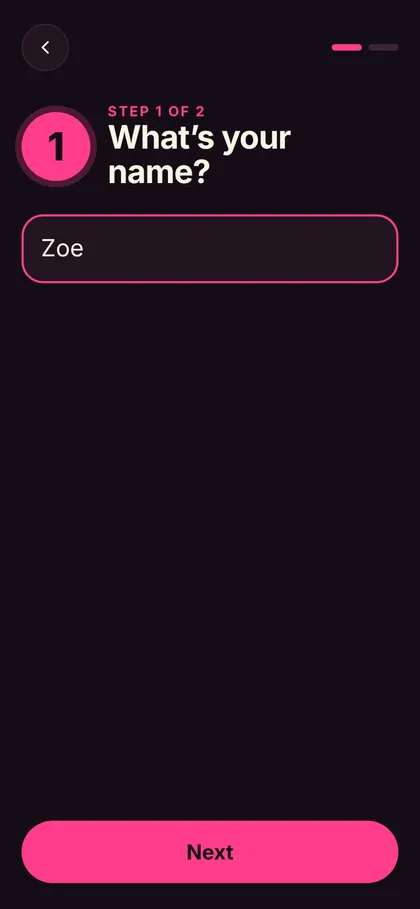
- Step 1: type your name and tap Next.
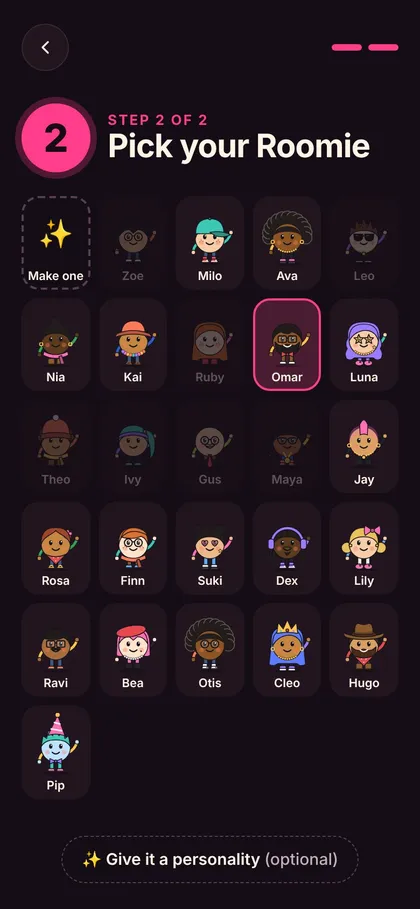
- Step 2: pick a Roomie, or tap Make one to build your own. Optional: Give it a personality.
- Tap Join the party.
At the party
➕ Add songs
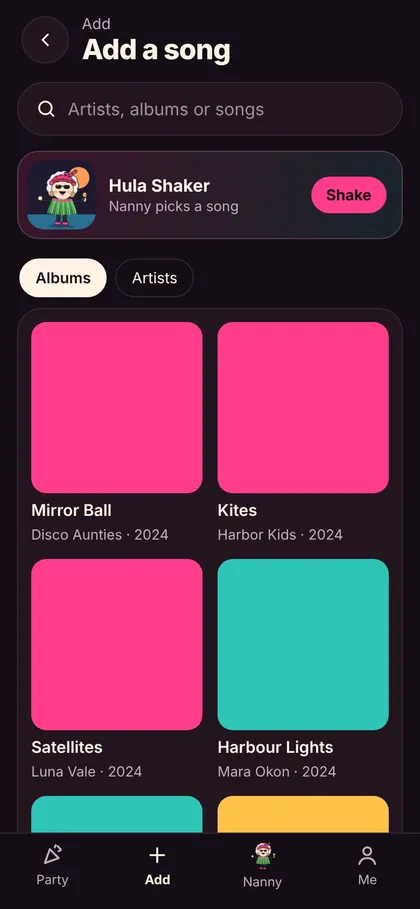
Search the host’s music, add an album, Select songs, or paste a Spotify, TIDAL, Apple Music or Deezer link.
🌺 Can’t decide?
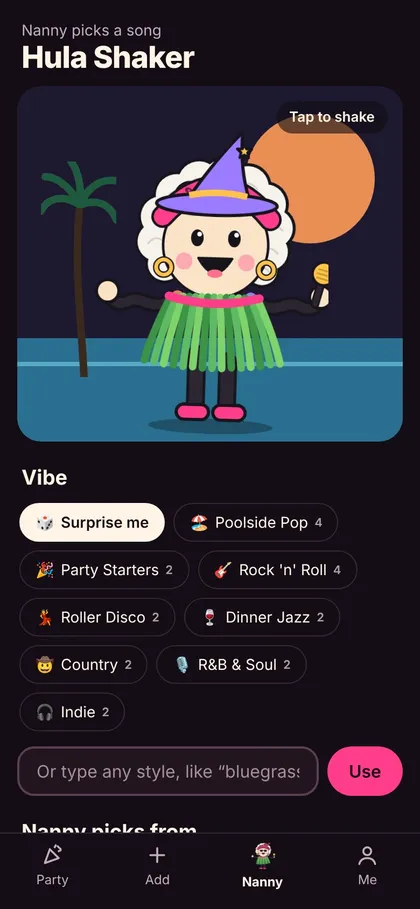
Tap the Hula Shaker for a random song in the party’s vibe.
📍 Your place in line
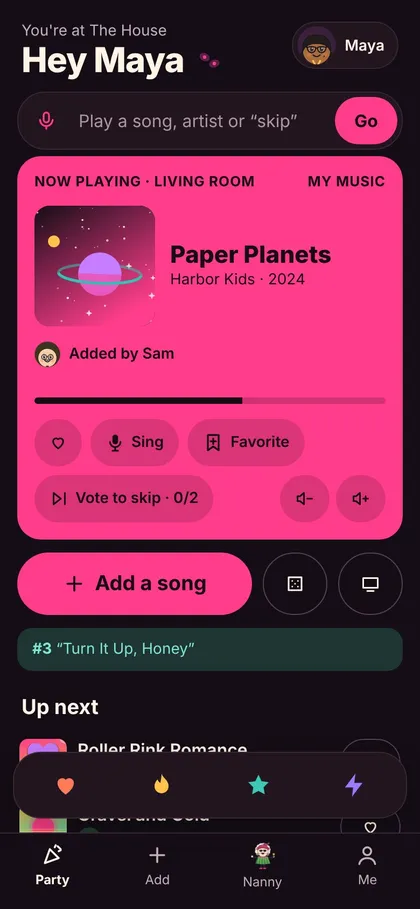
The Party screen shows what’s playing, your place in line and Sing.
❤️ React
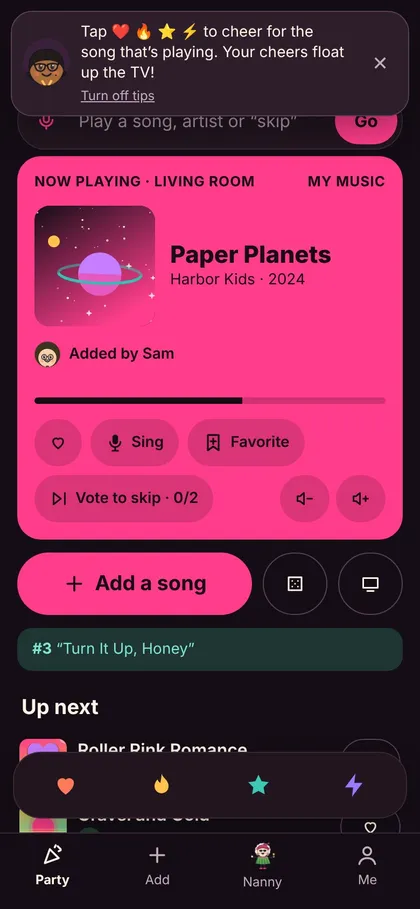
Tap ❤️ 🔥 ⭐ ⚡ to cheer for the song that’s playing. Your cheers float up the TV.
👎 Vote to skip
Not feeling it? Vote to skip. When half the guests (at least two) agree, it’s gone.
📅 Coming back next week?
Guests stay signed in on their phone, with their name, Roomie and look, for up to a year. A new phone is a new guest.
Roomies, Make one and personality
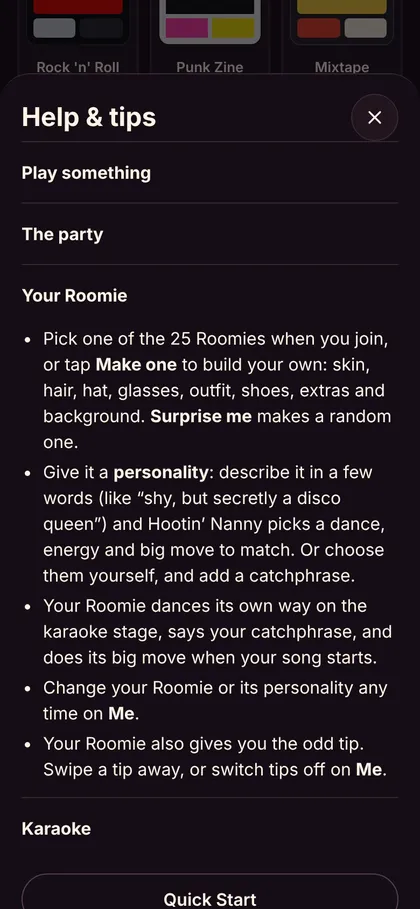
Roomies are little dot people, Nanny’s party crowd. Everyone has one: it stands for them on phones and the TV, sings when they’re on the mic, and dances on the stage.
One per guest
There are 25 Roomies. Each goes to one person at a time; taken ones are dimmed. A Roomie you make is yours alone, never “taken”.
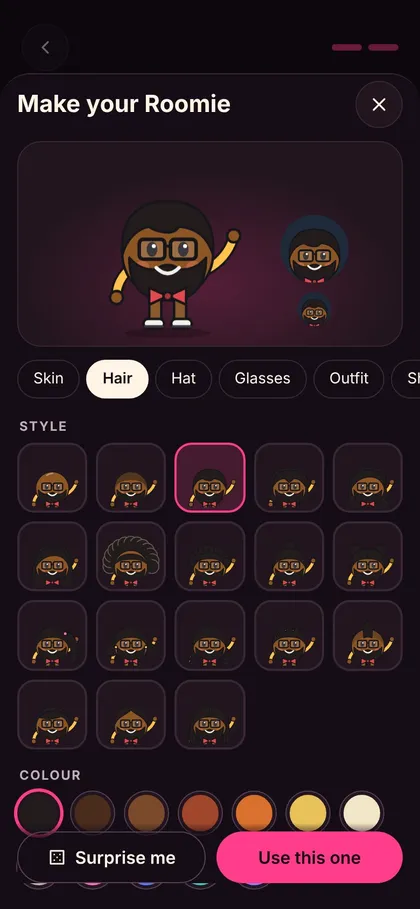
✨ Make one
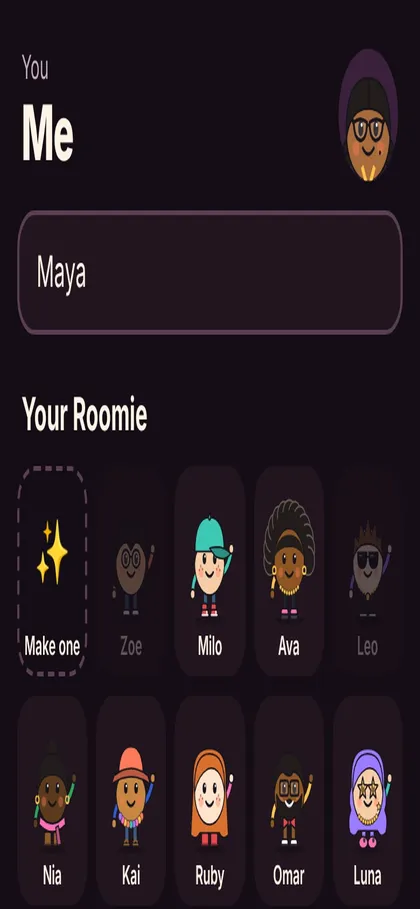
Tap the first tile, Make one. Eight tabs: Skin · Hair · Hat · Glasses · Outfit · Shoes · Extras (earrings, beard, freckles, a flower, a mic…) · Background. Every option shows a little preview.
🎲 Surprise me
Rolls a random Roomie. Tap Use this one to keep it. Change it any time on Me.
Personality
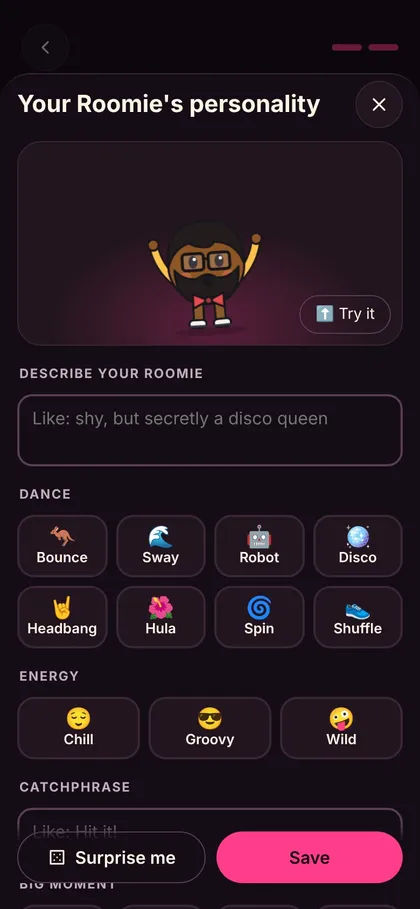
On Me → Personality, or Give it a personality when joining. It decides how your Roomie dances, what it says, and its move for big moments.
✍️ Describe your Roomie
Type a few words, like “shy, but secretly a wild disco queen”, and Hootin’ Nanny picks to match. Change anything it picked.
💃 Dance
Bounce, sway, robot, disco, headbang, hula, spin or shuffle.
⚡ Energy
Chill, Groovy or Wild: how big and how fast your Roomie moves.
💬 Catchphrase
A few words, like “Hit it!”. Your Roomie says it on the mic, on the dance floor and when your cheers float up the TV.
🌟 Big moment
Big jump, twirl, blow kisses or sparkle: when your song starts, and when it’s your turn in the spotlight.
🙂 No personality?
Your Roomie still dances: Hootin’ Nanny picks a style from your name.
Host, Family and guests
The Hootin’ Nanny computer is always the host. Another phone becomes the host with the PIN, and anyone who has joined can be made Family under Party controls → People (tap Make Family).
| Host | Family | Guests | |
|---|---|---|---|
| Join, add songs, love, react, vote to skip, sing, play the games | ✓ | ✓ | ✓ |
| Take the mic on the karaoke stage when it’s free | ✓ | ✓ | ✓ |
| Play music in any room, any time; volume, skip, group rooms | ✓ | ✓ | – |
| Play a song now, run games, manage the party line, Nanny in any room | ✓ | ✓ | – |
| Settings, house rules, the PIN, music folders, unlock keys, the TV switch | ✓ | – | – |
Making a phone the host
- On the phone, open the address from the setup page (or scan the setup page’s code).
- Tap I’m the host and type the 4-digit PIN from the setup page.
Who’s signed in
On a host phone, Settings → People shows everyone at the party (tap Make Family to let someone play music any time, or 🗑 to remove them) and every host phone, with when it was last used. Don’t recognise a host phone, or gave an old phone away? Tap Sign out next to it.
The TV screen
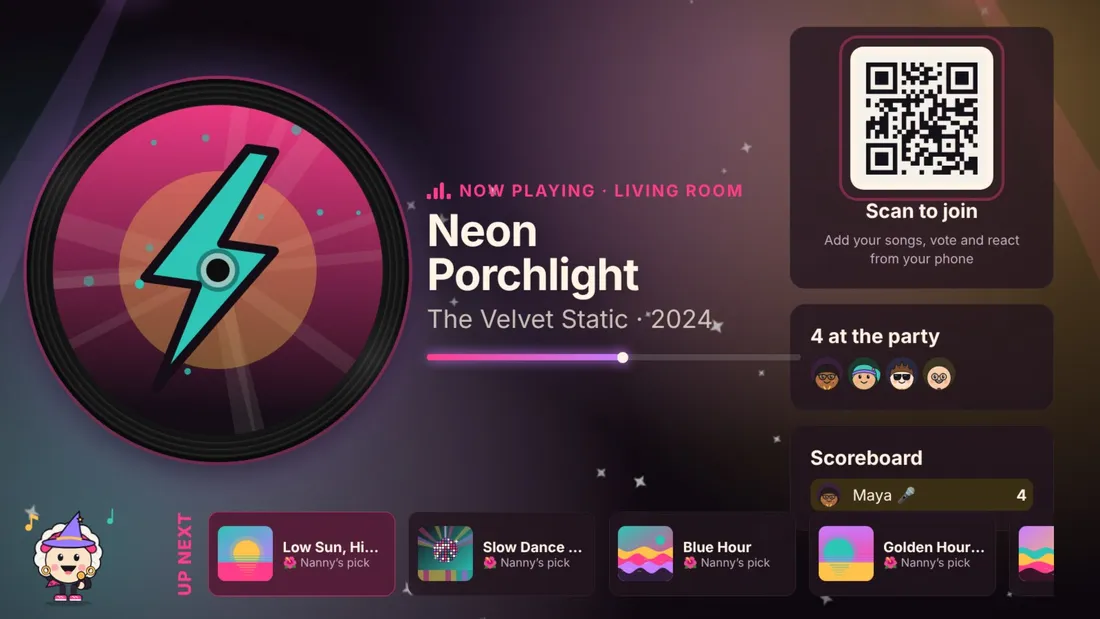
Open the TV address (it ends in /tv) in the browser of a smart TV, tablet or laptop. Anyone on your Wi-Fi can open it; no sign-in.
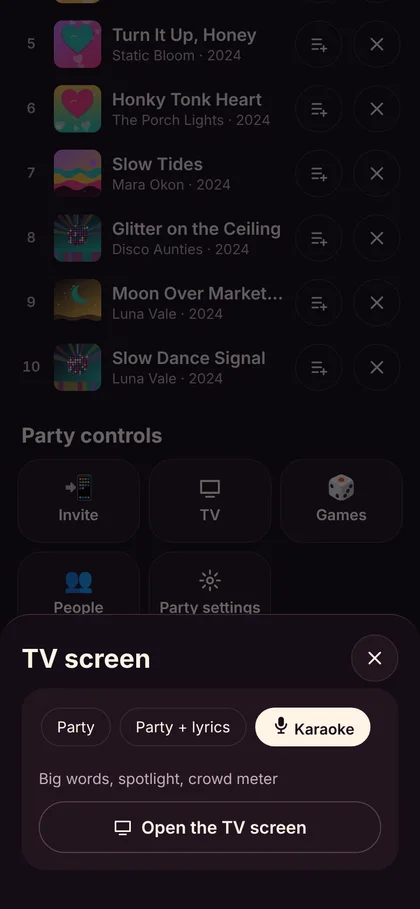
📺 Three screens
The host switches under Party controls → TV: Party, Party + lyrics and Karaoke. Every TV switches together.
🌈 Always moving
The background flows in the song’s colours, and each look brings its own lights: gold spotlights for Jazz Club, lasers for Neon Rave, papel picado for Fiesta.
🖼️ A picture for every song
Songs without a cover get the real one, looked up by title and artist, or one drawn to fit.
🎊 Pop-ups
Someone joins, adds a song, wins a crown or the DJ Battle: the TV says so.
- No TV? Guests tap 📺 on the Party screen to watch it on their phone.
- Gentler screen: add
?calmto the end of the address. - The TV uses the host’s look.
- Screen going to sleep? Tap it, or press OK on the remote once.
- Updated Hootin’ Nanny? TV screens reload by themselves.
Karaoke and singing along
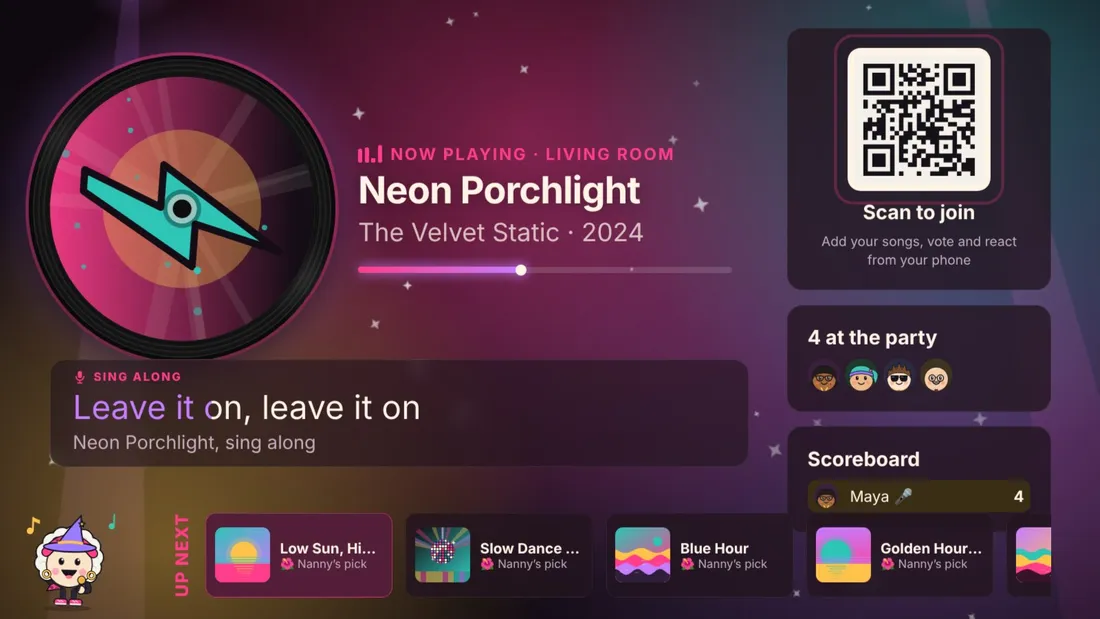
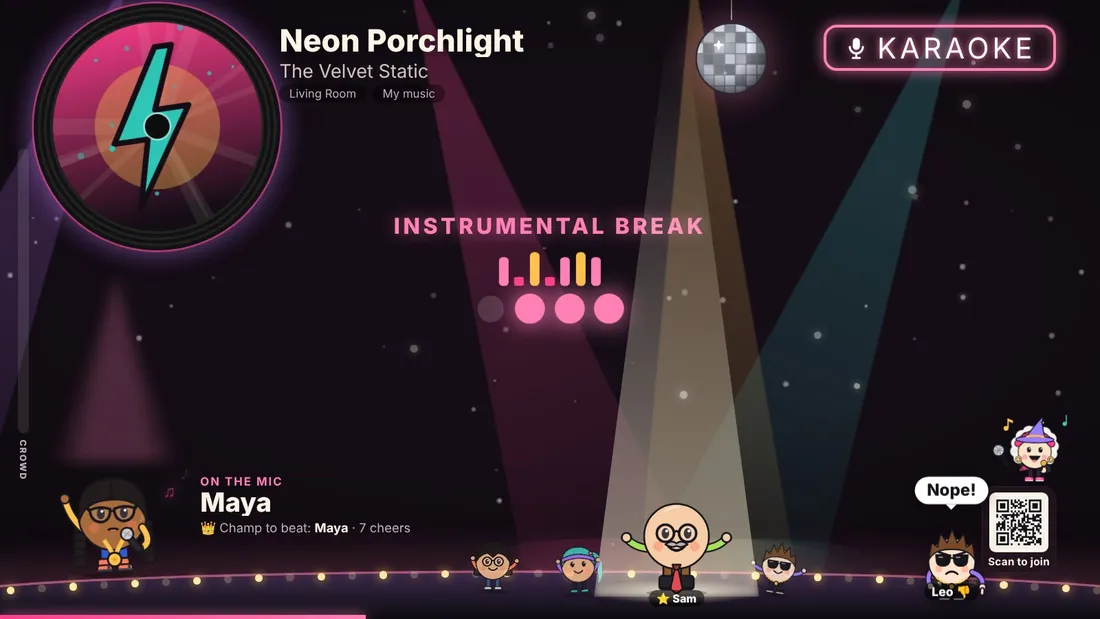
Switch the TV to Karaoke: the words light up as they’re sung, the singer gets the mic, and everyone else dances on the stage.
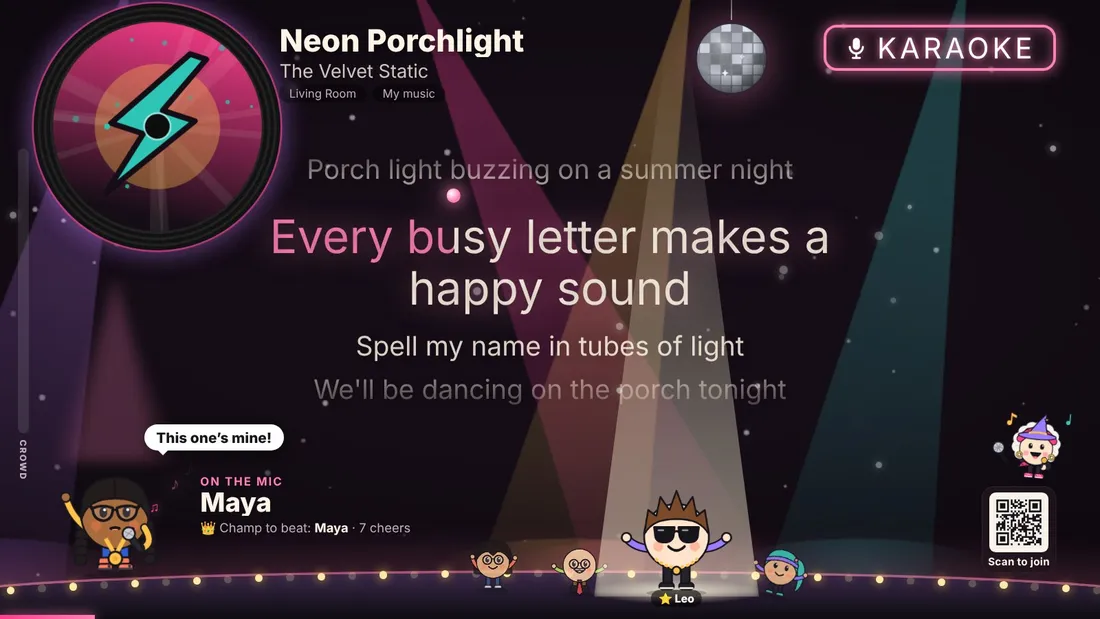
🎤 Who sings?
Whoever picked the song: added it to the party, or played it from Find. When nobody has the mic (a song Nanny picked, or one from the Sonos app), anyone can take it.
🕺 The dance floor
Everyone at the party dances on the stage in their own style. Every 30 seconds someone new is the star: centre stage, spotlight, big move, catchphrase.
🙌 Applause
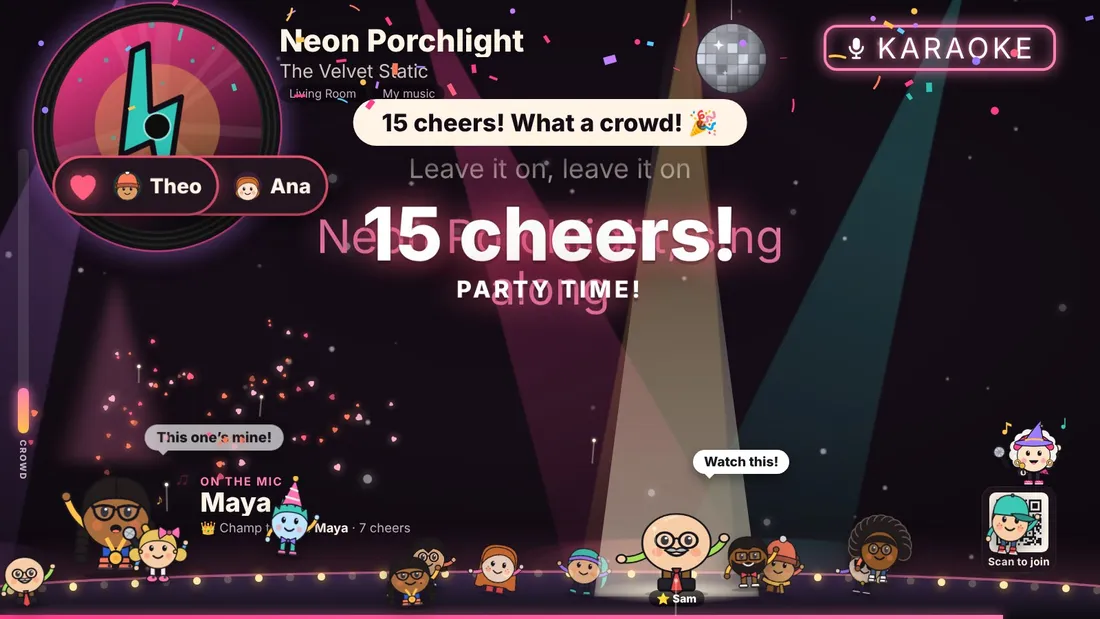
Cheers during a friend’s song are their applause, and fill the crowd meter. At the last chorus: “Give it up for Maya!”
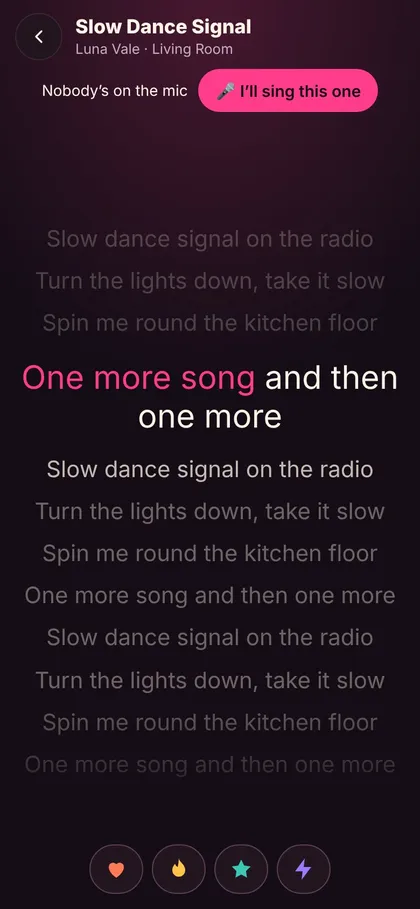
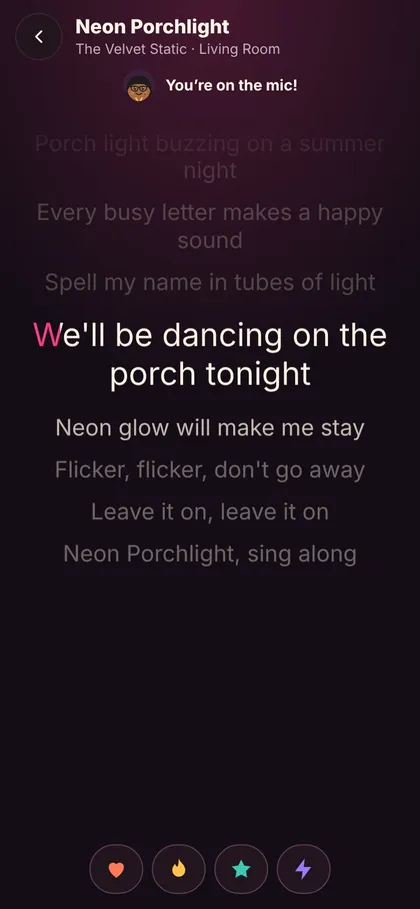
The words on your phone
Tap Sing on the song that’s playing. The words light up in time, the same as the TV.
🎤 Taking the mic
Free when nobody picked the song, or Nanny did. If a friend picked it, they’re on the mic; pick a song yourself to take a turn. The host can always take it.
⏱️ Words early or late?
The host or Family: Sing → Fix to nudge the timing, paste the words if none were found, or Tap along as each line starts to time them for everyone.
🎵 No words?
Instrumentals, radio and songs with no lyrics online get a light show on the TV instead, in the cover’s colours and at the song’s tempo.
🌐 Where the words come from
A .lrc file next to your song file, words looked up online (LRCLIB), or words the host pasted.
Cheers, milestones and the crown
❤️ 🔥 ⭐ ⚡
Count for the song that’s playing. A name tag with the guest’s Roomie (and catchphrase) floats up with sparkles.
🎆 5, 10, 20… cheers
Fireworks and a big banner. Every 15 cheers: confetti and a line of Roomies dancing across the bottom.
👎 A vote to skip
Their Roomie pops up grumpy, thumbs down: “Nope!”, “Next!”, “Booo!”.
👑 The karaoke crown
The singer with the most cheers tonight holds the crown. A new champ gets a TV moment, and Nanny hops by the clock.
Games
Find them under Party controls → Games. Everyone plays on their own phone, and the TV keeps score.
🕵️ Guess Who Added It
Names behind songs are hidden. While a song plays, everyone guesses who picked it; the TV reveals it after 20 to 60 seconds. Right guesses score; stump everyone and the picker scores.
🎧 DJ Battle
Two people are secretly picked and have two minutes to choose a battle song. Each previews for 30 seconds, everyone votes, and the winner takes the crown.
🗓️ Theme Night
70s, 80s, 90s or 2000s Night, One-hit wonders, Guilty pleasures, Movie soundtracks, or your own. Keep it on theme (strict) means off-theme songs can’t be added; otherwise guests get a gentle nudge.
Nanny, your DJ, and the Hula Shaker
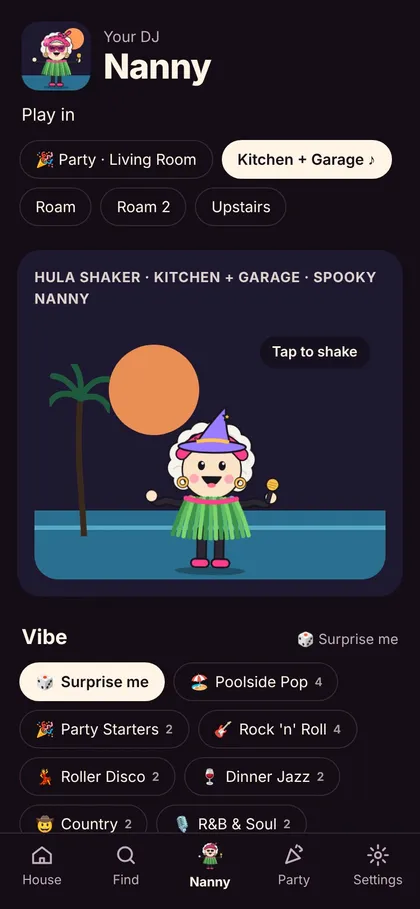
Nanny keeps the music going. When the line runs dry she picks songs in the party’s vibe, and she’ll shake up a mix for any room.
🌴 Shake
Pick a room (or the party) and a vibe: Poolside Pop, Party Starters, Rock ’n’ Roll, Roller Disco, Dinner Jazz, Hip-Hop, Latin, Workout, Holiday, Kids, Snore Core, a decade… or type any style. Nanny dances and lines up ten songs.
🧭 Never a dead end
Skip with nothing up next and Nanny carries on in the room’s last vibe. Well-tagged music (genre and year) means better picks.
🎩 Dressed for the party
Nanny’s outfit follows the music, the vibe and the holidays: bunny ears, a witch hat, a Santa hat, a feather boa…
🎶 Picked by Nanny
Songs she adds say Picked by Nanny. Guests’ requests always come first.
Talk to it: typing and voice
At the top of the House and Party screens, type (or tap your keyboard’s mic) and say it. Tap What can I say? for ideas.
Guests can add songs, vote to skip, love songs and nudge the volume. The host and Family can do everything.
“Hey Siri, Hootin’ Nanny”
- On your phone, open Me → Siri & Google Assistant.
- Copy your personal link and follow the steps for an iPhone Shortcut, or the HTTP Shortcuts app on Android.
- Say “Hey Siri, Hootin’ Nanny” (or your shortcut’s name) while your phone is on the home Wi-Fi. Siri reads the answer back.
Tonight’s recap
On the Party screen, Tonight’s recap shows the night’s best songs, top DJs, scores and the champ. The host can put it on the TV under Party controls → TV.
Every reaction is remembered, so Find → Playlists → Crowd favourites ranks the songs people loved most.
Back to top ↑Me, looks and Help
🙋 Me
Your name and Roomie, or Make one; Personality; your look; Roomie tips; Siri & Google Assistant; Add to home screen; Leave the party.
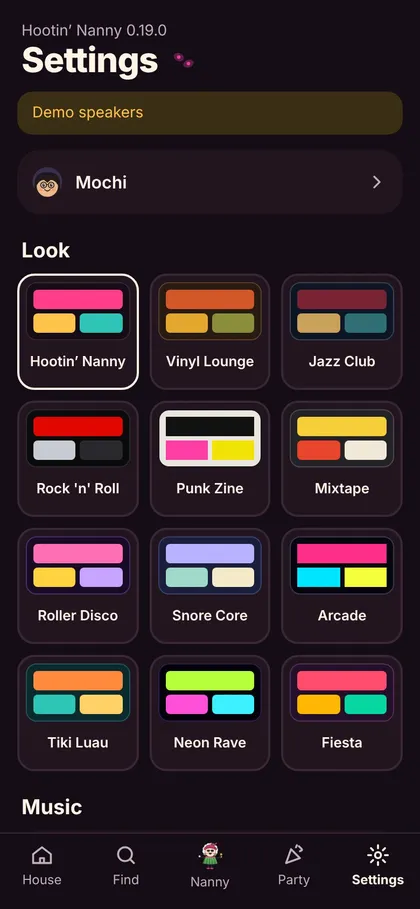
🎨 12 looks
Hootin’ Nanny, Vinyl Lounge, Jazz Club, Rock ’n’ Roll, Punk Zine, Mixtape, Roller Disco, Snore Core, Arcade, Tiki Luau, Neon Rave and Fiesta. Guests start with the host’s; the TV always uses the host’s. Some looks even rename the tabs (Roller Disco says Rink, Spin and Groove).
💡 Roomie tips
The first time someone reaches a screen, their Roomie (Nanny, until they have one) slides in with a one-line tip. Swipe it away, tap ✕, or Turn off tips. Turning them back on starts them over.
❓ Help & tips
On Me, and in Settings for the host: short answers by topic, plus the guides.
Settings, at a glance (host)
You
Your name, Roomie and personality at the party.
Look
12 looks.
Music
Spotify, TIDAL, and your music folders (Look for new music).
This Hootin’ Nanny
Phone address, TV screen, Host PIN (a new PIN signs other phones out), Siri.
Unlock keys
On the owner’s copy: make and renew keys. Elsewhere: when your key ends.
Help
Help & tips, Roomie tips on/off, the guides.
Privacy and where things are kept
Hootin’ Nanny runs on your computer and your home Wi-Fi. Phones talk to your computer, not to us. There are no accounts to make.
Where your things are kept
| Windows | %APPDATA%\HootinNanny |
| Mac | ~/Library/Application Support/HootinNanny |
That folder holds your host PIN, phones, music folders, the party, playlists, history, Spotify and TIDAL sign-ins, and your key. Uninstalling leaves it there, so reinstalling picks up where you left off.
What goes out to the internet
- Lyrics are looked up on LRCLIB by song title and artist.
- Missing covers are looked up by title and artist (Apple’s public iTunes search).
- Radio stations come from the Radio Browser directory.
- Spotify and TIDAL searches, only if you connect them.
A help report (from the icon by the clock, or the setup page) has no keys or passwords in it.
Back to top ↑Troubleshooting
Most things sort themselves out. For the rest, find your problem below.
📵 Phones can’t open Hootin’ Nanny
Make sure the phone and the computer are on the same Wi-Fi (not a guest network). On Windows: Start → Hootin’ Nanny → Phones can’t connect – fix it. It marks your network as Private and removes any firewall block. A VPN on the computer or phone can also get in the way: turn it off for the party.
🔇 No speakers found
On the setup page, tap Get help finding them: it checks the Wi-Fi, a VPN and the network type, and can add a speaker by its address.
🧩 Some rooms are missing
Portable speakers (Roam, Move) only appear on Wi-Fi, not Bluetooth. Speakers in the older “Sonos S1” app are a separate system.
🪟 The setup page opens every time
Untick Show this page when Hootin’ Nanny starts on the setup page. Then it won’t open by itself when Hootin’ Nanny starts or when you open it again; click Nanny’s icon by the clock whenever you want the page.
👯 Two Nanny icons by the clock / “Another Hootin’ Nanny is already running”
Hootin’ Nanny 0.19.0 makes sure only one copy runs: if you start it again while it’s already starting or running, the second one steps aside and Nanny’s icon just hops. Still see two? One is probably an older copy. Choose Stop Hootin’ Nanny from each icon’s menu (or restart the computer), then start Hootin’ Nanny once. An older copy (Roomtone, or an unzipped folder version) still open? Stop it the same way, or uninstall it.
🚧 “Hootin’ Nanny couldn’t start” / port in use
Something else on the computer is using port 8800, often another copy that’s still closing. Restart the computer and start Hootin’ Nanny again. Still stuck? Save a help report and send it.
🎤 No words on the karaoke stage
During an intro the words wait for the countdown. No lyrics online? The host pastes them under Sing → Fix. Words early or late? Sing → Fix to nudge the timing or Tap along.
🟢 Spotify won’t connect
Connect on the Hootin’ Nanny computer itself, at http://127.0.0.1:8800 (not from a phone). Check the Redirect URI in your Spotify app is exactly http://127.0.0.1:8800/api/spotify/callback, that Web API is ticked, and that you copied the Client ID. Spotify needs Premium to play on Sonos.
🍎 Mac says Hootin’ Nanny can’t be opened
Move it to Applications first, then System Settings → Privacy & Security → Open Anyway. Also allow it to find devices on your local network (System Settings → Privacy & Security → Local Network).
🛡️ Windows protected your PC
Click More info, then Run anyway. Hootin’ Nanny isn’t from a big company, so Windows doesn’t know it yet.
🔑 “Not unlocked” or a key ending
Paste the key on the setup page or in Settings. Copy a request writes the message for you. New computer? It has a new code, so ask for a new key.
😴 Songs stop when the computer sleeps
Hootin’ Nanny keeps the computer awake during a party. On a laptop, keep the lid open.
🔄 A screen looks old after an update
It reloads by itself within a few seconds. Still old? Refresh the page once.
🔢 Forgot the PIN
It’s on the setup page and under Settings on any host phone. Lost a phone? Make a new PIN.
🆘 Still stuck?
Click Nanny’s icon by the clock → Save a help report (or the link at the top of the setup page). Send the file to whoever gave you Hootin’ Nanny. No keys or passwords are in it.
Frequently asked questions
Tap a question to see the answer. Use the search box at the top to find anything.
Do my guests need to install an app?
No. Guests scan the join code with their phone’s camera and it opens in the browser. They can add it to their home screen if they like (Me → Add to home screen).
Does the computer have to stay on?
Yes. Hootin’ Nanny runs on that computer, and phones and the TV talk to it. It keeps the computer awake while the party is on. On a laptop, keep the lid open.
Which speakers work?
Sonos speakers in the current Sonos app (S2) on the same Wi-Fi. Portable ones (Roam, Move) appear when they’re on Wi-Fi. Speakers in the older Sonos S1 app are a separate system.
Which music can I play?
Your own music files (MP3, M4A/AAC, WMA, FLAC, OGG, WAV, AIFF), your Sonos favourites, radio, and Spotify, TIDAL, Apple Music or Deezer links through the accounts in your Sonos app. Connect Spotify or TIDAL to search their whole catalogue.
What is Nanny’s Vault?
Songs from Nanny’s studio days, recorded by Nanny & the Roomies, with Nanny dressed for each song’s style and words timed for karaoke. The host turns it on under Settings → Music → Nanny’s Vault. The songs stream from the web, so the computer needs the internet to play them.
Do I need Spotify or TIDAL?
No. They’re optional. Without them, you and your guests search your own music, radio and Sonos favourites.
How many guests can join?
As many as fit in your living room. There are 25 ready-made Roomies, and anyone can make their own.
Can a guest hog the music?
No. Fair turns mean everyone gets a song before anyone gets a second, and guests can have up to 10 waiting.
How do I stop a guest blasting the volume?
Guests can’t change the volume unless you allow it. To let them, turn on Party controls → Party settings → Guests can change the volume; their − and + stop at your Guest volume limit.
How do I keep it family-friendly?
Turn on Clean mode in Party settings. Spotify and TIDAL mark explicit songs; your own files usually don’t, so check those yourself.
How do I let my partner control everything?
Under Party controls → People, tap Make Family next to their name. Or give them the host PIN for full control.
How does skipping work for guests?
Guests vote to skip. When half the guests (at least two) agree, the song is skipped.
What’s the CROWD bar on the left of the karaoke stage?
It shows how loud the room is cheering. Every ❤️ 🔥 ⭐ ⚡ a guest taps on their phone during the song pushes it up, and it slowly drops back when the cheering stops (from full to empty in about 20 seconds). Fill it to the top and the TV shouts “The crowd goes wild!” It starts empty for each song.
Why don’t I see catchphrases while the words are up?
On purpose: the lyrics come first. Roomies only say their catchphrase in the gaps (the intro, a solo, between verses), and at a big party the stage shows fewer dancers and fewer name tags, so the words are always easy to read. Every cheer still counts.
Who gets the mic in karaoke?
Whoever picked the song. When nobody did (Nanny picked it, or it came from the Sonos app), anyone can tap “I’ll sing this one”. The host can always take it.
Why are there no words for this song?
Lyrics come from a .lrc file next to the song, from LRCLIB online, or from the host. Instrumentals and radio get a light show instead. The host can paste words under Sing → Fix.
Can I use it without a TV?
Yes. Guests tap 📺 on the Party screen to see the TV screen on their phone, and Sing shows the words on every phone.
How do I put it on the TV?
Open the address ending in /tv in the TV’s web browser (or a tablet or laptop connected to it). The setup page has a TV screen button and the address.
What is Nanny?
Nanny is the Hootin’ Nanny mascot and your DJ. She fills gaps in the music, runs the Hula Shaker, sings backing vocals on the karaoke stage, and hops by the clock when something happens.
What are Roomies?
Little dot people, one for each guest. They stand for you on phones and the TV, sing when you’re on the mic and dance on the stage.
Can guests come back next time with the same Roomie?
Yes. Guests stay signed in on their phone for up to a year, with their name, Roomie and look. A new phone is a new guest.
How do I start a new night fresh?
Party controls → Party settings → Fresh start. It clears the line, scores and crowns. Tick Also sign guests out to empty the guest list too.
How do I stop the setup page opening every time?
Untick Show this page when Hootin’ Nanny starts on the setup page.
How do I stop Hootin’ Nanny?
Click Nanny’s icon by the clock → Stop Hootin’ Nanny, or use the Stop Hootin’ Nanny button on the setup page.
How do I make it start when I turn on the computer?
Tick Start Hootin’ Nanny when I sign in, on the setup page or in the icon’s menu.
Is Hootin’ Nanny free?
Download it from the website and tip what the party was worth to you. Each copy is unlocked for one computer with a key.
I got a new computer. What about my key?
A new computer has a new code, so ask for a new key. If it’s your own copy, load your owner file. Copy the Hootin’ Nanny folder across first to keep playlists and history.
Is my music or data sent anywhere?
Your music plays from your computer to your speakers. Hootin’ Nanny looks up lyrics, missing covers and radio stations online, checks the Hootin’ Nanny website twice a day for a newer version and downloads it (nothing about you is sent), and searches Spotify and TIDAL only if you connect them. See Privacy.
How do I update?
From 0.19.8 Hootin’ Nanny updates itself. When it starts, and twice a day, it checks hootinnanny.com for a newer version, downloads it, checks it, and puts it on when no party is playing (never mid-song). On Windows, Windows asks once whether it may make changes: tap Yes on the Hootin’ Nanny computer. Afterwards Nanny tells you she’s updated. Your settings, phones, playlists, history and key are kept. Settings → New versions has Check now, Install new versions by myself and Tell me about new versions. With automatic updates off, Nanny just lets you know; download it from the website and run it the same way.
How do I uninstall?
Windows: Start → Hootin’ Nanny → Uninstall (or Settings → Apps). Mac: quit it from the menu bar icon and drag it from Applications to the Bin. Your saved things stay in your user folder.
Is Hootin’ Nanny made by Sonos?
No. Hootin’ Nanny is an independent project. It isn’t affiliated with, sponsored or endorsed by Sonos, Inc.